Dashboard Overview
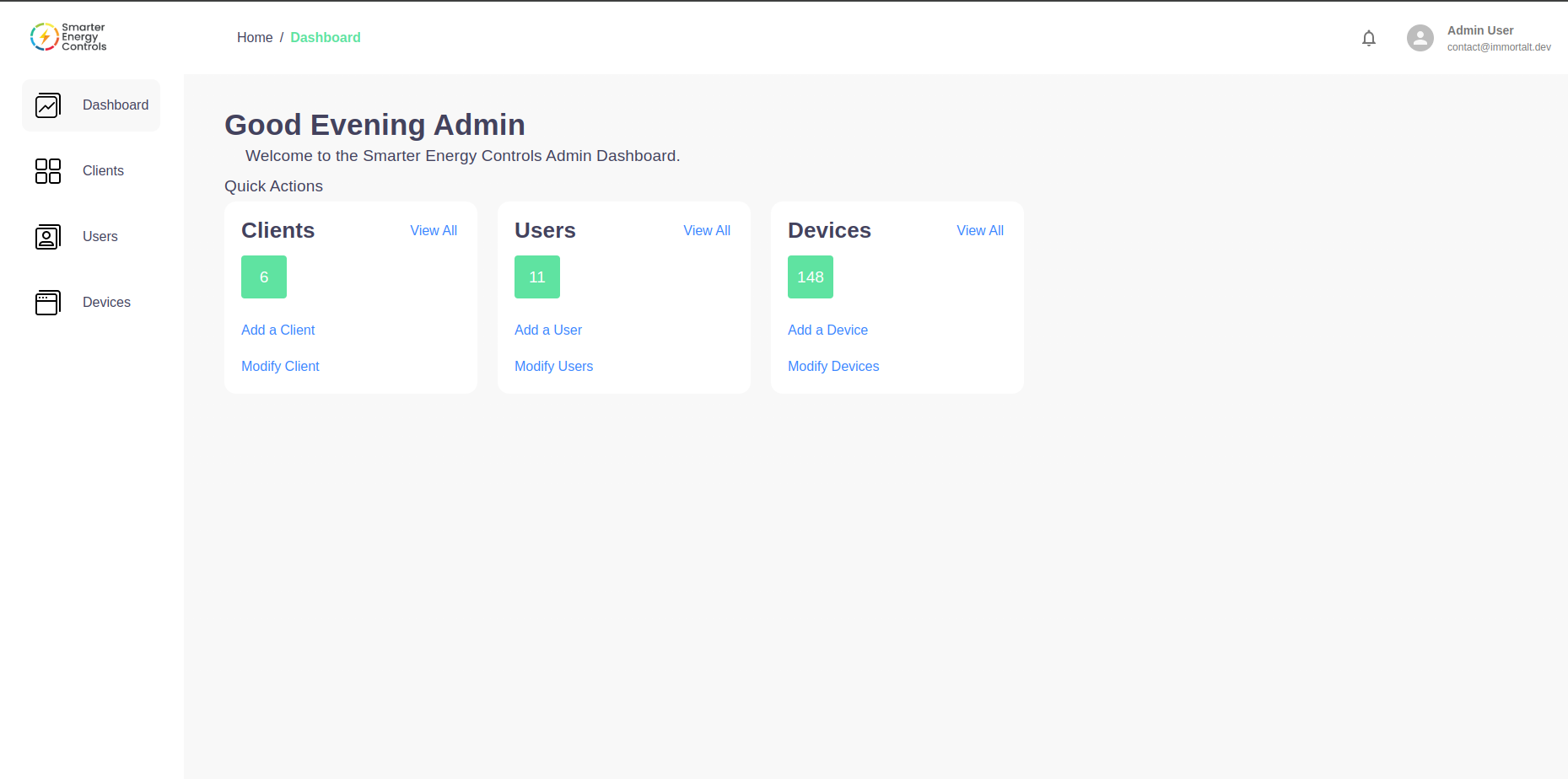
After logging in, administrators are presented with the main dashboard interface, which provides a snapshot of the system's current state and quick access to common management tasks.
Dashboard Sections
Greeting
The dashboard greets the user with a "Good Evening Admin" (or similar greeting based on the time of day), providing a personalized touch to the management interface.
Quick Actions
Clients
- View All: A summary count of all clients is displayed. Clicking 'View All' allows the admin to view the entire list of clients.
- Add a Client: This action initiates the process to register a new client within the system.
- Modify Client: This option allows the admin to search for existing clients and update their details as necessary.

Users
- View All: Displays the total number of users. The 'View All' link provides an overview of all users in the system.
- Add a User: Begins the workflow to create a new user account.
- Modify Users: Permits the admin to edit or update user information, such as roles, permissions, or statuses.

Devices
- View All: Shows the count of all devices connected to the system. Clicking 'View All' provides detailed information on each device.
- Add a Device: Launches the sequence for integrating a new device into the network.
- Modify Devices: Allows for the configuration and management of existing devices.

Navigation Sidebar
On the left side of the dashboard, the navigation sidebar includes:
- Dashboard: A home button that brings the user back to this main screen.
- Clients: Directs to the client management section.
- Users: Navigates to user accounts and roles management.
- Devices: Leads to the devices overview and management area.
User Profile and Logout
In the top right corner, the admin can view their profile, access account settings, and log out of the dashboard.
- Admin User: Indicates the logged-in user's name.
- Email: Displays the admin's contact email.
- Logout: A function to securely exit the dashboard.
For a detailed guide on managing clients, users, and devices, please refer to the respective sections of this documentation.
This document is subject to updates to reflect new features or changes in the Smarter Energy Controls system.