Search
These sections describe the search functionalities available for finding users within the system. Users can leverage these features to quickly locate specific records.
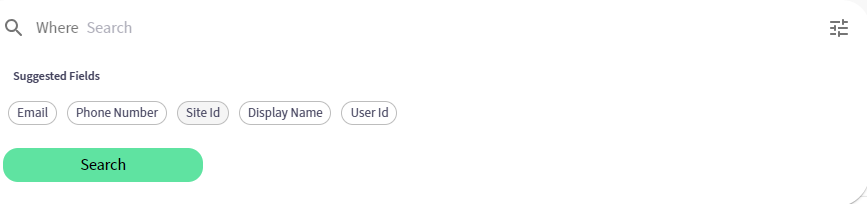
User Search
The user search feature provides a powerful tool for locating specific user information quickly and efficiently within the system.
Search Bar
- Where Search: This is a dynamic search bar that allows users to input search queries. Users can search by various criteria such as email, User Id, site ID, Phone Number, or Display Name.
Suggested Fields
Directly below the search bar is a list of suggested fields which are common attributes associated with users. These suggestions serve as quick filters:
- Display Name: Clicking this button will filter the search to only include results relevant to User names.
- User Id: By selecting this, the search will focus on finding User IDs that match the input criteria.
- Site Id: This option allows users to search for users based on their site ID.
- Email: Use this filter to search for users by their email address.
- Phone Number: Use this filter to search for users by their phone Number.
Search Button
- Search: After entering the desired search criteria, clicking the green 'Search' button will initiate the search and display the results.
User Email Search (Sample)
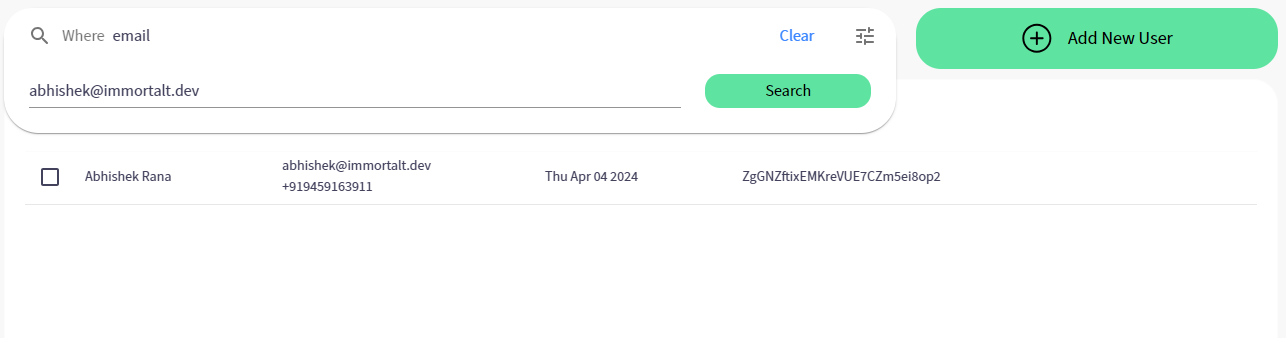
Click on User Email suggested field
Search Input
- Search Query Box: Users can type the email of the User they are looking for in the "Where email" input field.
Additional Controls
- Clear Button: Allows users to clear the current search input.
- Search Button: Executing the search based on the input provided is done by clicking this button.
- Settings and Filters Icon: Opens additional search options or filters to refine search criteria.
Usage
To use either search functionality:
- Enter the search term in the respective search bar.
- For the user search, use the suggested fields for quick filtering.
- For the User name search, use the "Test Cases" section if needed.
- Click the 'Search' button to perform the search.
- Use the 'Clear' button to reset the search field for a new search.
- Adjust search parameters using the settings and filters icon for more refined results.