Dashboard Overview
After logging in, Clients are presented with the main dashboard interface, which provides a snapshot of the system's current state and quick access to common management tasks.
Dashboard Sections
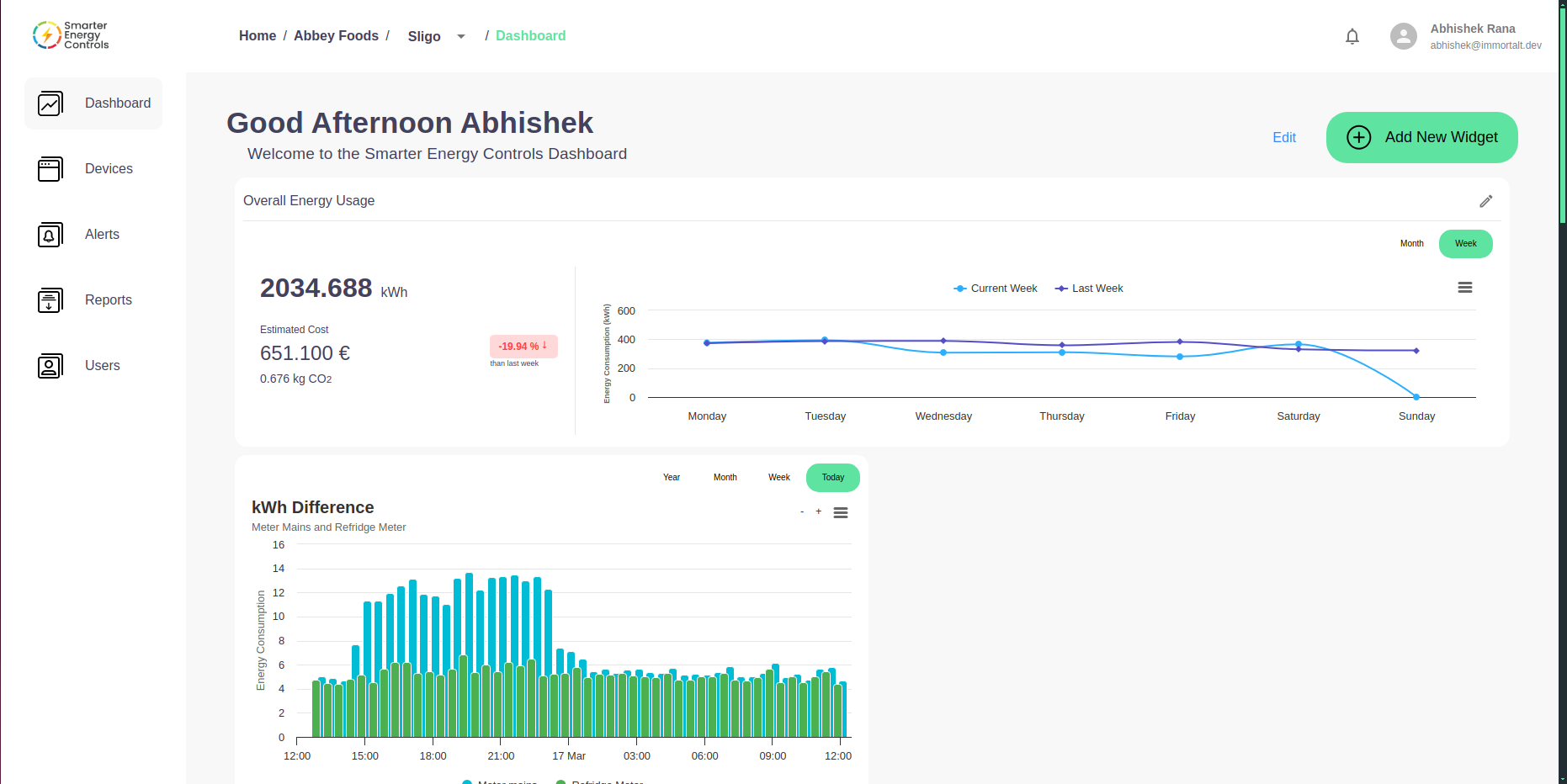
Greeting
The dashboard greets the user with a "Good Evening [Client Name]" (or similar greeting based on the time of day), providing a personalized touch to the management interface.
Dashboard Area
On the dashboard area user will see widgets added by the admins and default widget on the top for Overall Energy Usage.
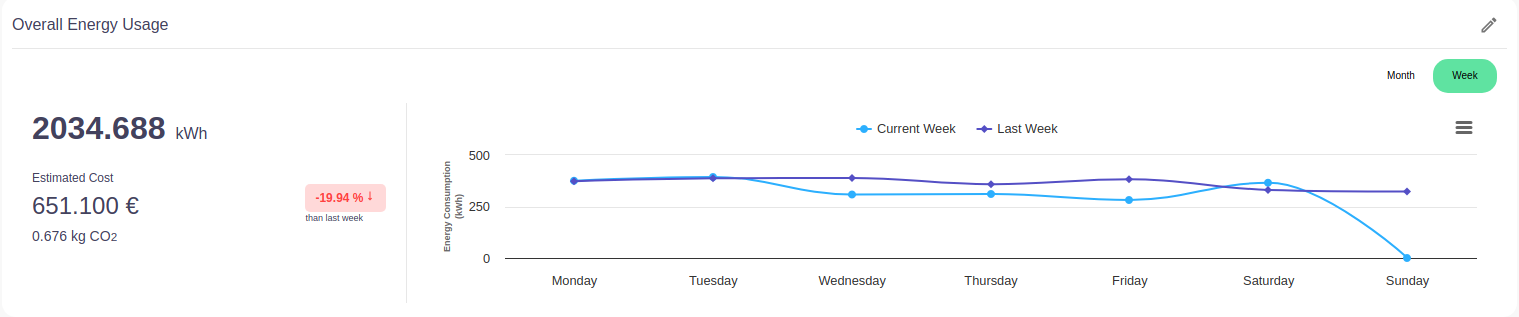
Configure Overall Energy Usage Widget
- Click on the Edit button on widget (top right corner)
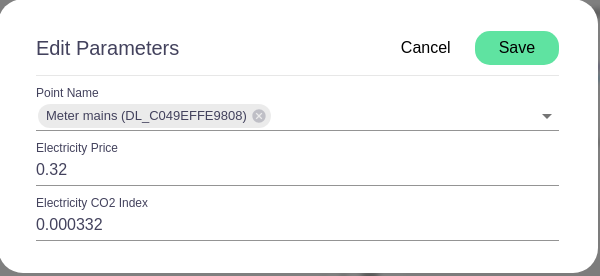
- A form will open with information point name, electricity price and CO2 index.
- Enter the relevant information to make the widget works as shown below.
Navigation Sidebar
On the left side of the dashboard, the navigation sidebar includes:
- Dashboard: A home button that brings the user back to this main screen.
- Devices: Directs to the Devices management section.
- Alerts: Directs to the Alerts management section.
- Users: Navigates to user accounts and roles management.
- Reports: Leads to the Reports overview and management area.
User Profile and Logout
In the top right corner, the user can view their profile, access account settings, and log out of the dashboard.
- User Name: Indicates the logged-in user's name.
- Email: Displays the admin's contact email.
- Logout: A function to securely exit the dashboard.
For a detailed guide on managing alerts, reports, users, and devices, please refer to the respective sections of this documentation.
This document is subject to updates to reflect new features or changes in the Smarter Energy Controls system.