User Management
This document outlines the components and functionality of the user management section of the application's client dashboard.
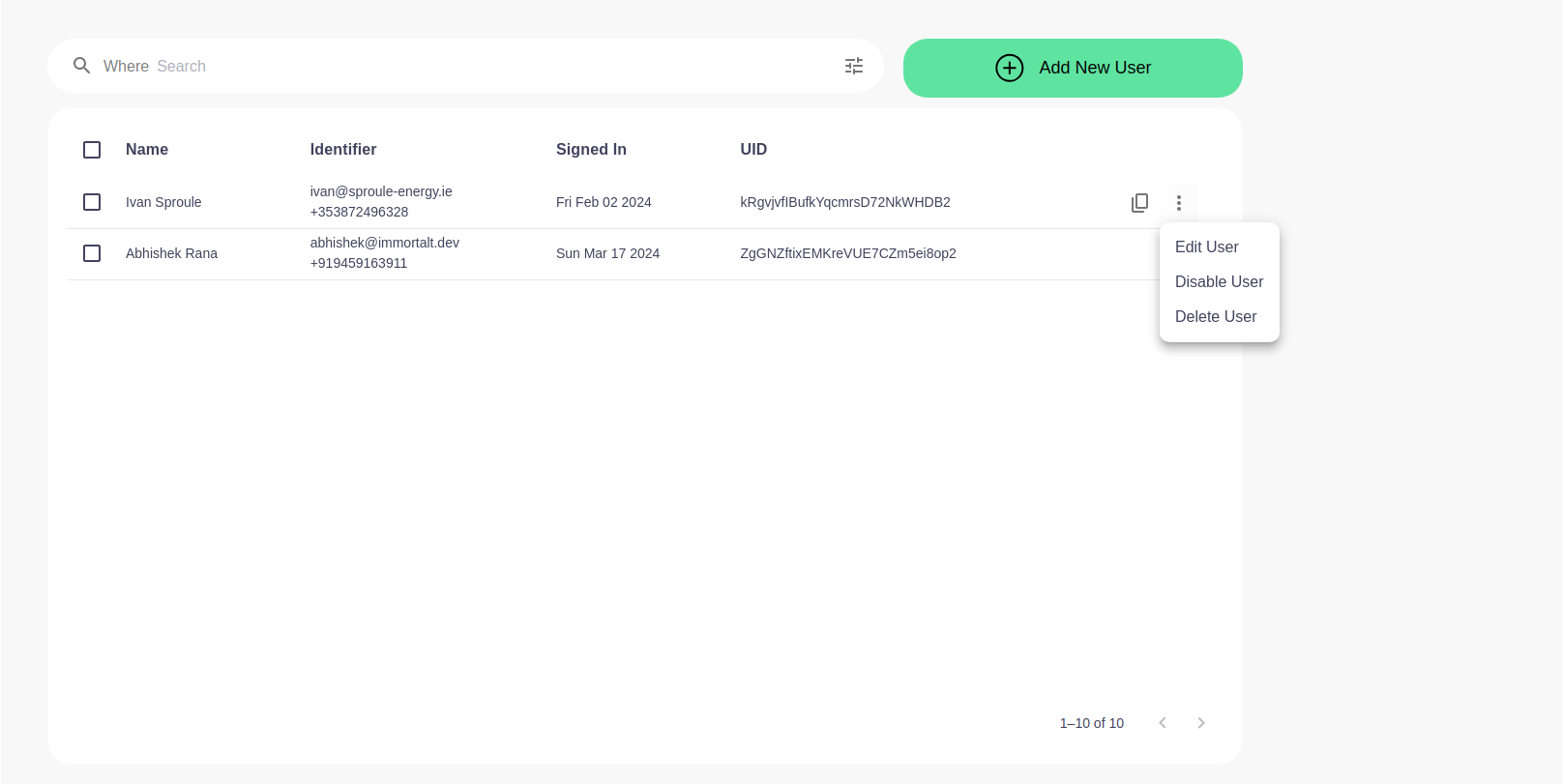
Interface Components
- Search Bar: A prominent search bar at the top allows for filtering the user list based on specific queries.
- Add New User Button: A green button located in the top right corner, labeled 'Add New User', is used to register a new user within the system.
User List
A table displaying the list of users, with the following columns:
- Checkbox: To select multiple users for batch actions.
- Name: The user's full name.
- Identifier: The user's email or phone number.
- Signed In: The date and time the user last signed in.
- UID: A unique identifier for the user within the system.
Options Menu
- A three-dot menu to the right of each user entry expands to:
- Edit User: Modify the user's details.
- Disable User: Temporarily prevent the user from accessing the system.
- Delete User: Permanently remove the user from the system.
Pagination Controls
- Controls to navigate through the list if it spans multiple pages.
Usage
Client side Administrators can interact with the interface to manage users by:
- Searching for users using specific criteria in the search bar.
- Adding a new user by clicking the 'Add New User' button.
- Selecting one or multiple users to perform batch actions.
- Using the options menu to edit, disable, or delete individual users.
- Navigating between user list pages using pagination controls.
Note: Action buttons may require confirmation for safety purposes and to prevent accidental changes.
For assistance or additional functionalities, administrators should refer to the system documentation or contact technical support.