SES Data Logger Energy Device (DL-Energy)
The custom Smart data logger is engineered to interface seamlessly with any RS 485-enabled equipment, enabling the reading and writing of registers tailored through the specialised firmware. This device also supports enhanced connectivity through cloud services and AI-driven applications.
It is commonly employed for a variety of metering devices, including water, oil, and power meters. With this device, we can gather a broad spectrum of data, including amperage, kilowatt-hours, and reactive power, and it's capable of handling current measurements covering both three-phase and single-phase systems when coupled with standard MIDI meters.
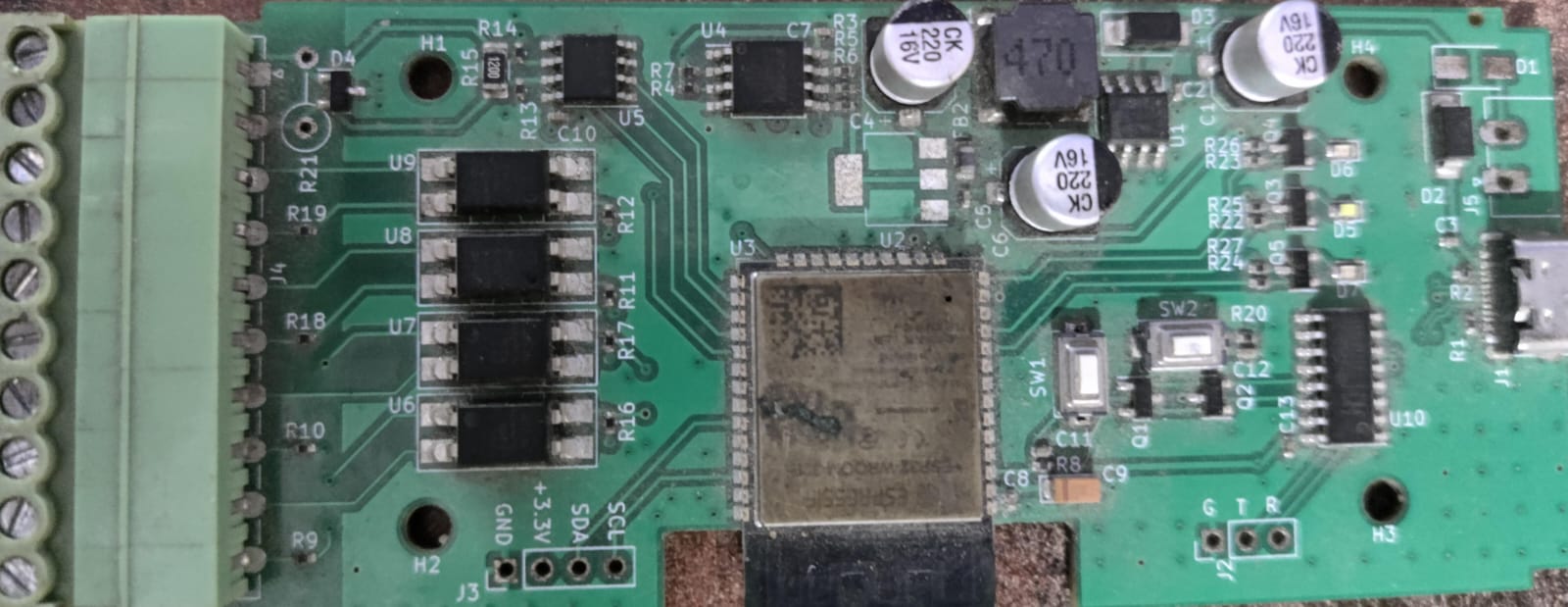
LED Indicator Status Instruction
| LED Indicator Status | Status Instruction |
|---|---|
| Blue LED indicator keeps off | No Modbus Data read |
| Blue LED indicator keeps on | Reading Modbus Data |
| Green LED indicator quick flashes for 10 times | Find device button pressed from local device dashboard |
| Green LED indicator keeps on | Device is connected to Cloud |
| Green LED indicator quick flashes (100ms) | Connecting to Cloud |
| Red LED indicator quick flashes (300ms) | Connecting to Router |
| Red LED indicator flashes at 1 sec | Device in AP mode |
| Red LED indicator keeps on | Device is connected to WiFi |
Buttons Instruction
| Actions | Results |
|---|---|
| Button pressed longer than 10 sec | Reset Device |
| Button pressed less than 10 sec | Reboot Device |
Specifications
| Specification | Detail |
|---|---|
| Model | DL-Energy |
| Input | DL-Energy: 100-240V ~ 50/60Hz 20A Max |
| Output | DL-Energy: 100-240V ~ 50/60Hz 20A Max |
| Wi-Fi | IEEE 802.11 b/g/n 2.4GHz |
| Operating temps | 10T40 (-10°C~40°C) |
| Working humidity | 5%-95% RH, non-condensing |
| Dimension | DL-Energy: 98x54x31mm |
| High voltage connector wire | DL-Energy: 1.5mm² to 6.0mm² |
Local Web UI Instructions
Setup of newly flashed device
-
Search for Local WIFIs and connect to the device.
- Connect to
SECXXXXXwith password12345678. - Open ip
192.168.4.1in browser.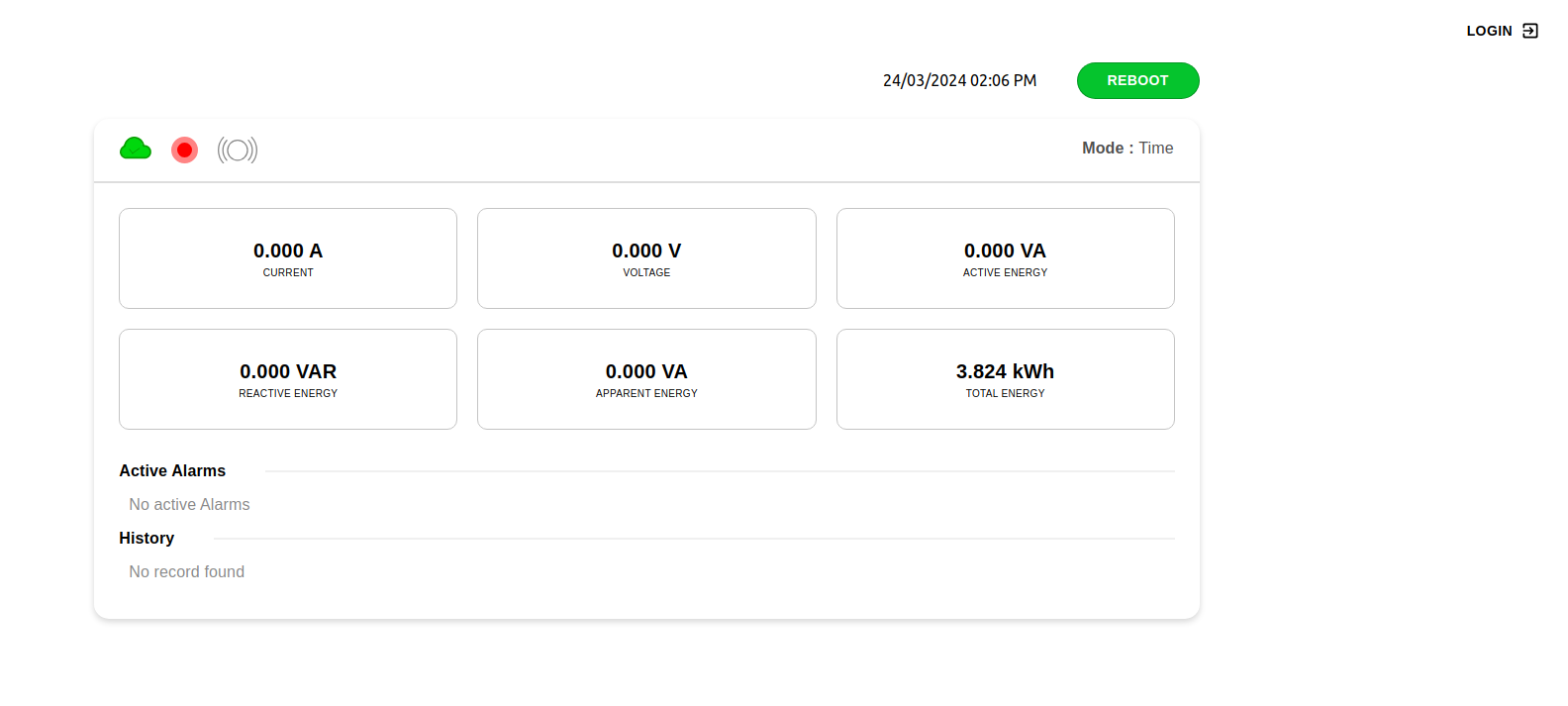
- Connect to
-
Login to Device web interface
- Use the default user id
userand passwordSES01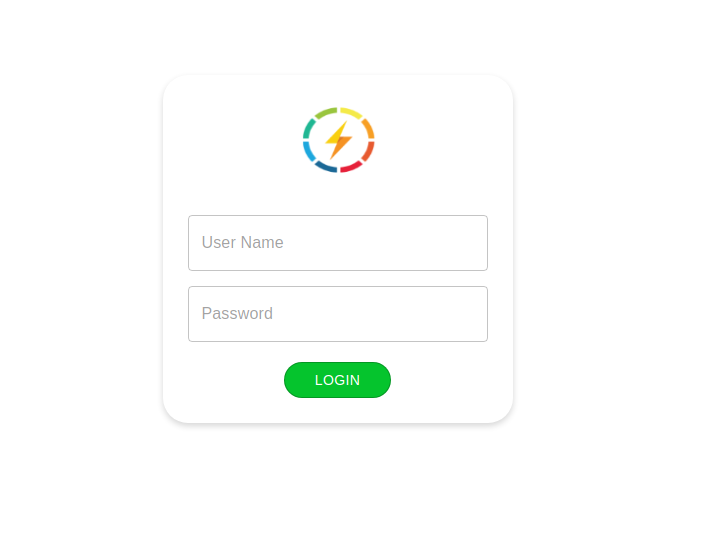
- Use the default user id
-
The device will allow you to connect and configure it.
- Configure the device to be on the WiFi Router on WiFi Configuration Tab.
-
Set the device to connect to the WiFi Router and restart the device.
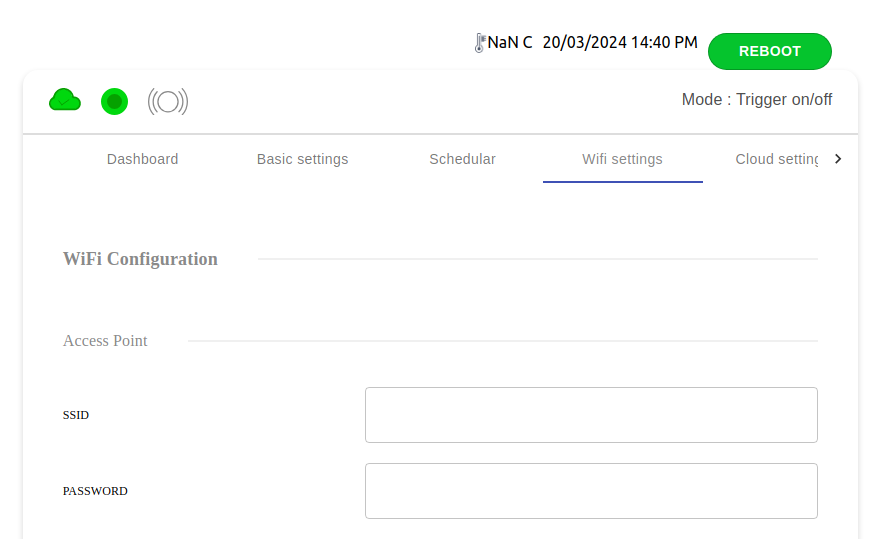
-
After reboot device will connect to WiFi Router then check device
ip addresson router & open it in browser and login as we have done in step 2. -
Now in Cloud configuration tab configure devices with correct
cloud settings.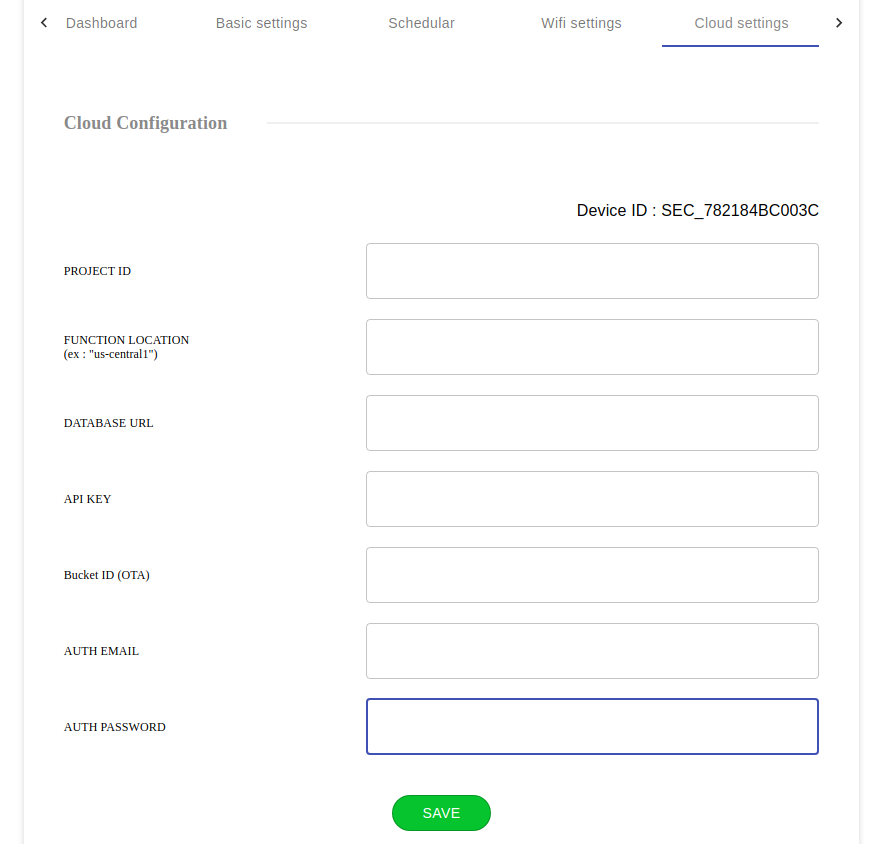
-
Reboot the device
-
After Reboot device will connect to WiFi and cloud. Now device is ready to be further configuration from SES Admin Dashboard.