SES TH20 Device
SES TH20 is a smart temperature and humidity monitoring switch. In addition TH20 continuously monitors the temperature and humidity in real time. When they reach your preset threshold turn the device’s on/off state.
In addition it supports 20A max loads, compatible with more home/offices appliances. However the TH20 supports checking of Temp & Humidity historical data, accurate to the 5 minutes. However in the smart scene, temperature, humidity, on, off support setting as the trigger, on, off, invert as execute actions.
SES TH20 supports two kinds of temperature monitor and humidity monitor sensors such as Si7021 Temp & Humi Sensor, DS18B20 waterproof Temp sensor. The sensor connector is upgraded to RJ9, supporting hot-plugging making the connection more stable and reliable. So TH20 has a wide application of scenes, like heated swimming pool, irrigation system, fermentation room, reptile terrarium, greenhouse grow, cold storages etc.
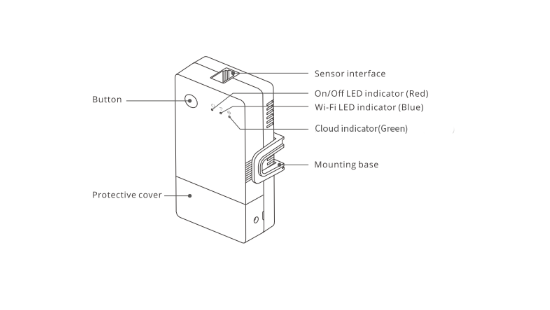
LED Indicator Status Instruction
| LED Indicator Status | Status Instruction |
|---|---|
| Red LED indicator keeps off | Relay open |
| Red LED indicator keeps on | Relay close |
| Red LED indicator quick flashes for 10 times | Find device button pressed from local device dashboard |
| Blue LED indicator keeps on | Device is connected to wifi |
| Blue LED indicator quick flashes | Connecting to router |
| Blue LED indicator flashes at 1 sec | Device in AP mode |
| Green LED indicator keeps on | Connected to cloud |
| Green LED indicator keeps off | Not connected to cloud |
Buttons Instruction
| Actions | Results |
|---|---|
| Button pressed longer than 20 sec | Reset Device |
| Button pressed longer than 20 sec & less than 20 sec | Put device in AP mode |
| Button pressed less than 10 sec | Reboot Device |
Specifications
| Specification | Detail |
|---|---|
| Model | SES TH20 |
| Input | SES TH20: 100-240V ~ 50/60Hz 20A Max |
| Output | SES TH20: 100-240V ~ 50/60Hz 20A Max |
| Wi-Fi | IEEE 802.11 b/g/n 2.4GHz |
| Operating temps | 10T40 (-10°C~40°C) |
| Working humidity | 5%-95% RH, non-condensing |
| Shell material | PC VO |
| Dimension | SES TH20: 98x54x31mm |
| High voltage connector wire | SES TH20: 1.5mm² to 6.0mm² |
| Rated impulse voltage | 2500V |
| Remark | External preliminary protection with Max. C 20 A circuit breaker in the supply line required under all circumstances. |
Local Web UI Instructions
Setup of newly flashed device
-
Search for Local WIFIs and connect to the device.
- Connect to
SECXXXXXwith password12345678. - Open ip
192.168.4.1in browser.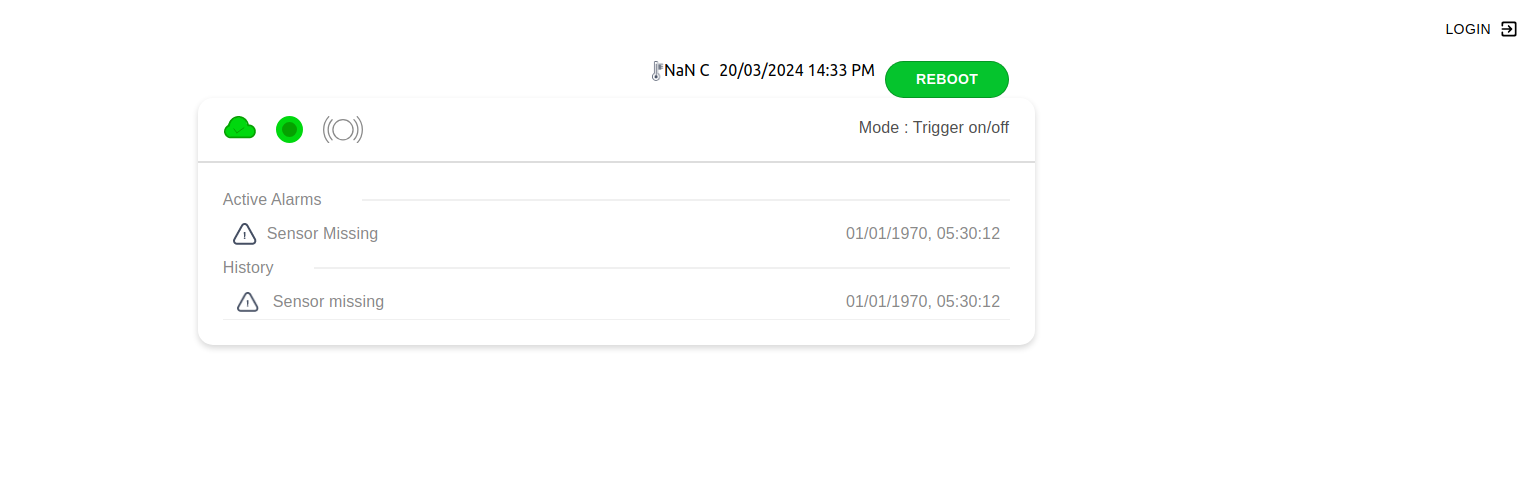
- Connect to
-
Login to Device web interface
- Use the default user id
userand passwordSES01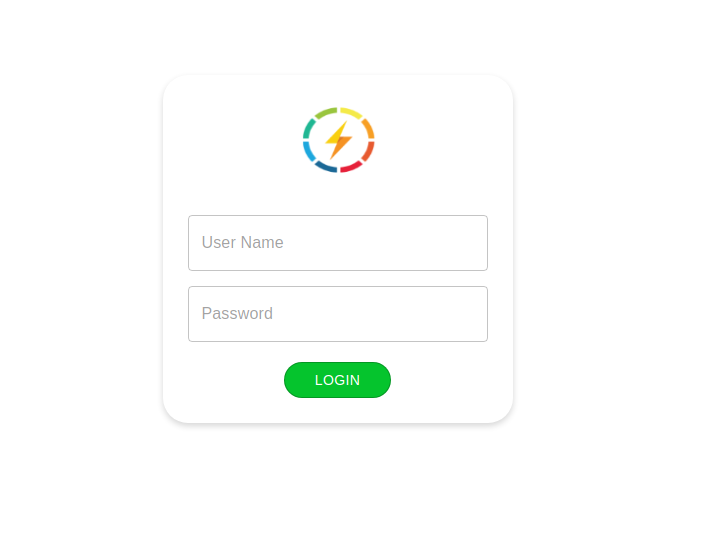
- Use the default user id
-
The device will allow you to connect and configure it.
- Configure the device to be on the WiFi Router on WiFi Configuration Tab.
-
Set the device to connect to the WiFi Router and restart the device.
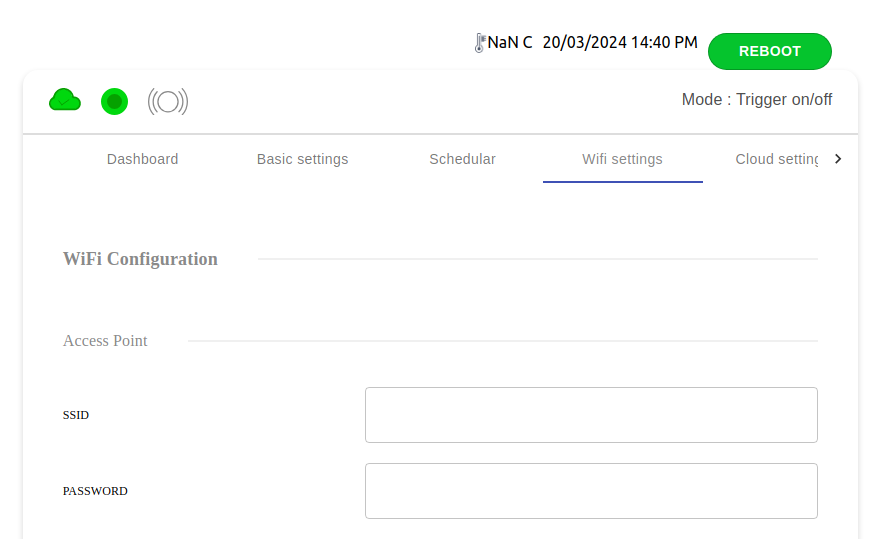
-
After reboot device will connect to WiFi Router then check device
ip addresson router & open it in browser and login as we have done in step 2. -
Now in Cloud configuration tab configure devices with correct
cloud settings.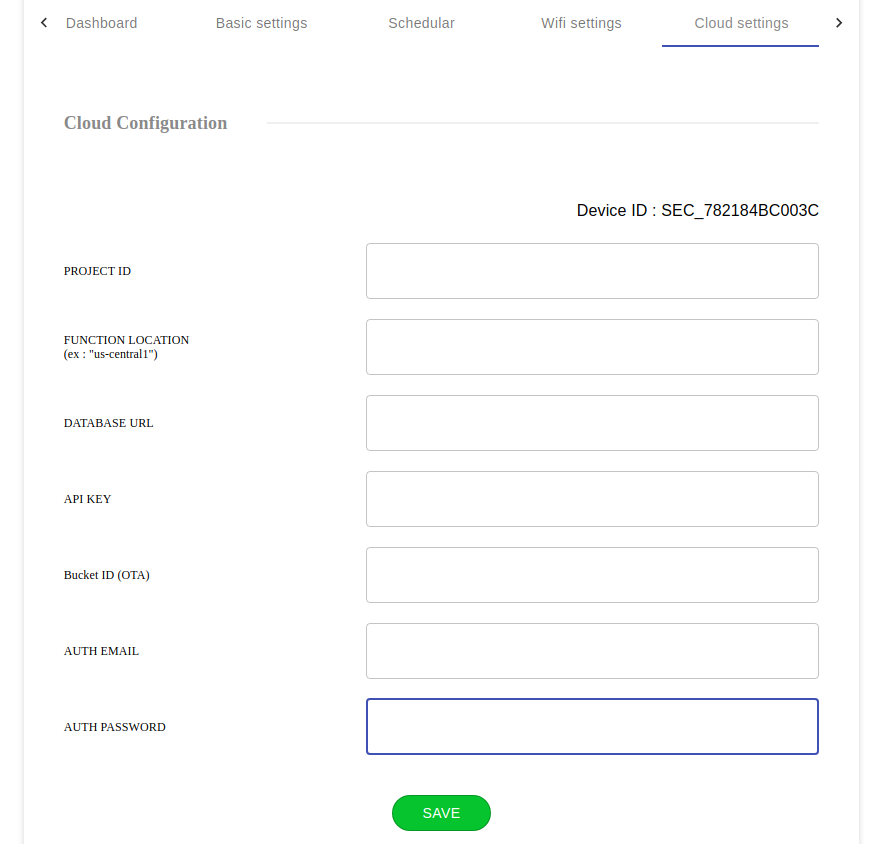
-
Reboot the device
-
After Reboot device will connect to WiFi and cloud. Now device is ready to be further configuration from SES Admin Dashboard.