Edit Profile
Overview
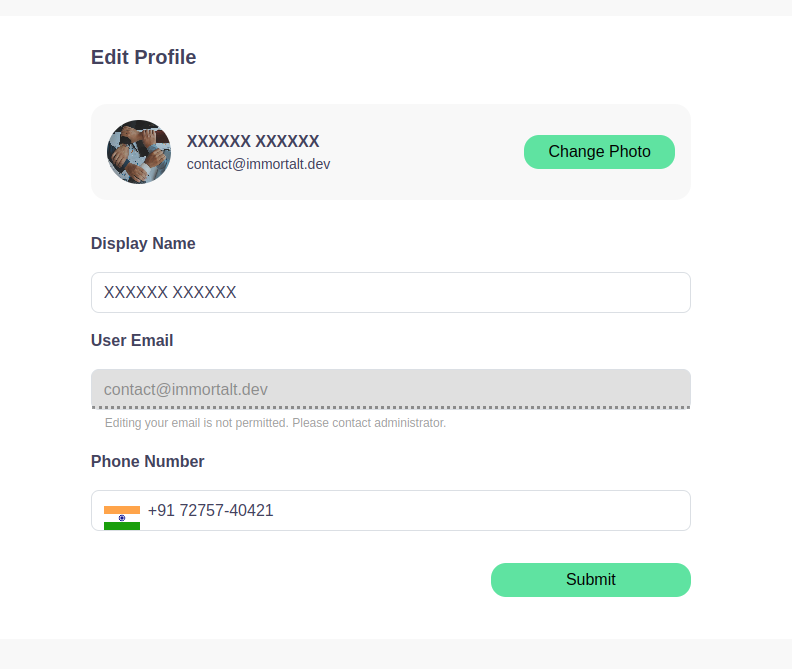
The Profile Page allows users to view and update their profile information, such as display name and phone number. This page also enables users to change their profile picture. However, email address updates must be requested from the administrator.
Fields
- Display Name: The name displayed on your profile.
- User Email: The registered email address (not editable by users).
- Phone Number: The contact number that can be edited.
- Profile Picture: Change the image associated with your profile.
The user can update their phone number and display name. To change the profile picture, click on the Change Photo button.
After making changes, click the Submit button to save your updates.
How to Navigate to the Profile Page
To access the Profile Page, follow these steps:
-
Login to your Smarter Energy Controls account.
-
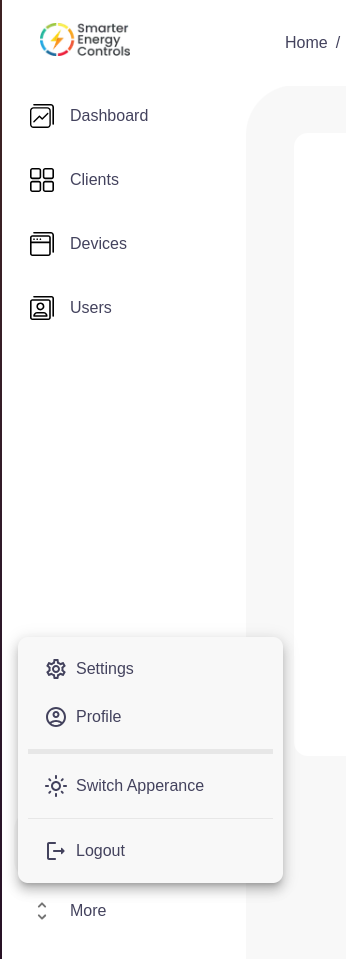
Once logged in, you will see the Sidebar Menu on the left side of the screen.
-
In the Sidebar Menu, scroll down and click on the Profile Icon under the Settings Dropdown Menu:
- To open this menu, click on the Profile Picture or Settings icon located in the lower section of the sidebar.
-
In the dropdown, select Profile.
-
You will now be redirected to the Profile Page, where you can view and edit your profile information.
Important Notes
- Email Editing: The email field is not editable by users. For security reasons, only administrators can update the email address. A request must be sent to the admin for such changes.
- Phone Number: Users can update their phone numbers anytime, and the changes will take effect immediately.
- Profile Picture: You can change your profile picture by clicking on the Change Photo button and uploading a new image.